


How to create a QRCode
- To get started, load a Design or open one for edit from your Admin Designs page
-
In your design, you should find the QRCode icon on the top menu bar as shown below:

- Once the Object has been created, you can edit its content by either clicking the spanner tool or the Object tab. On the Object tab, you should find the QRCode segment where you can type in any value to update the QRCode image.
How to bind your QRCode value to a text field
-
In addition to static text, you can also bind your QRCode Object’s value to any text element on the canvas. To do that, first create a Text Object. Then give your Text Object a title, for example
address
-
Next, you need to enter that title in opening and closing braces
{title}in the QRCode’s text input. You can include as many titles as you want and also mix it with static Texts
- Save your design and test. The QRCode will update once the value of the text changes when your customers edit the text either through a form or on canvas.
Put the Text Object’s title between the braces, not the value you want to encode. For example
https://{website} uses the text of the Object titled website, while {example.com} looks for an Object titled example.com.Compose from other objects
Below the QRCode’s text input you’ll find the Compose from other objects switch. Turn it on when the QRCode is built from your Text Objects, as described above.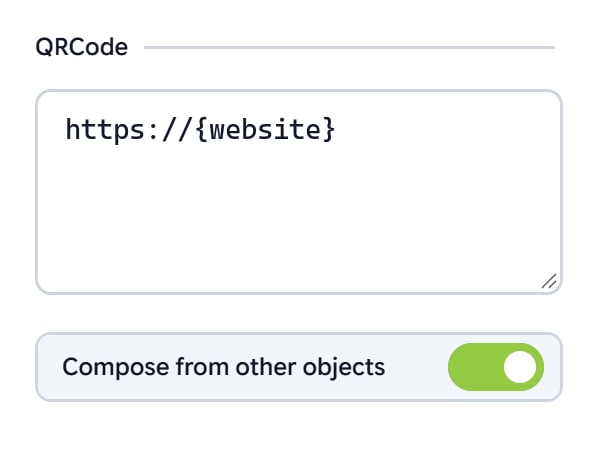
- On: the QRCode doesn’t get a field of its own in the customer’s form. Your customers fill in the Text Objects the QRCode is built from, and the QRCode follows their changes.
- Off: a QRCode that is a Smart Object gets its own field in the form, so your customers can type its value directly, for example a link to their website.
{title} values are filled in either way. The switch only decides whether your customers also see a separate field for the QRCode.