

1. Write the brief
Pick how to start:- Describe it
- Product link
- Pick a product
Say what you need in your own words: the product, its size if you
know it, the occasion, and the wording. “A 5 × 7 invitation for a
bakery opening on 12 November, warm and rustic, with a wheat
motif.” Dates, names and wording become sample text your customers
replace.
2. Compare the drafts
Each variation appears as a card while it is drafted, which takes about a minute. A finished card shows the draft (click it to turn the pages of a two-sided or folded product), the direction’s name, palette and a short summary.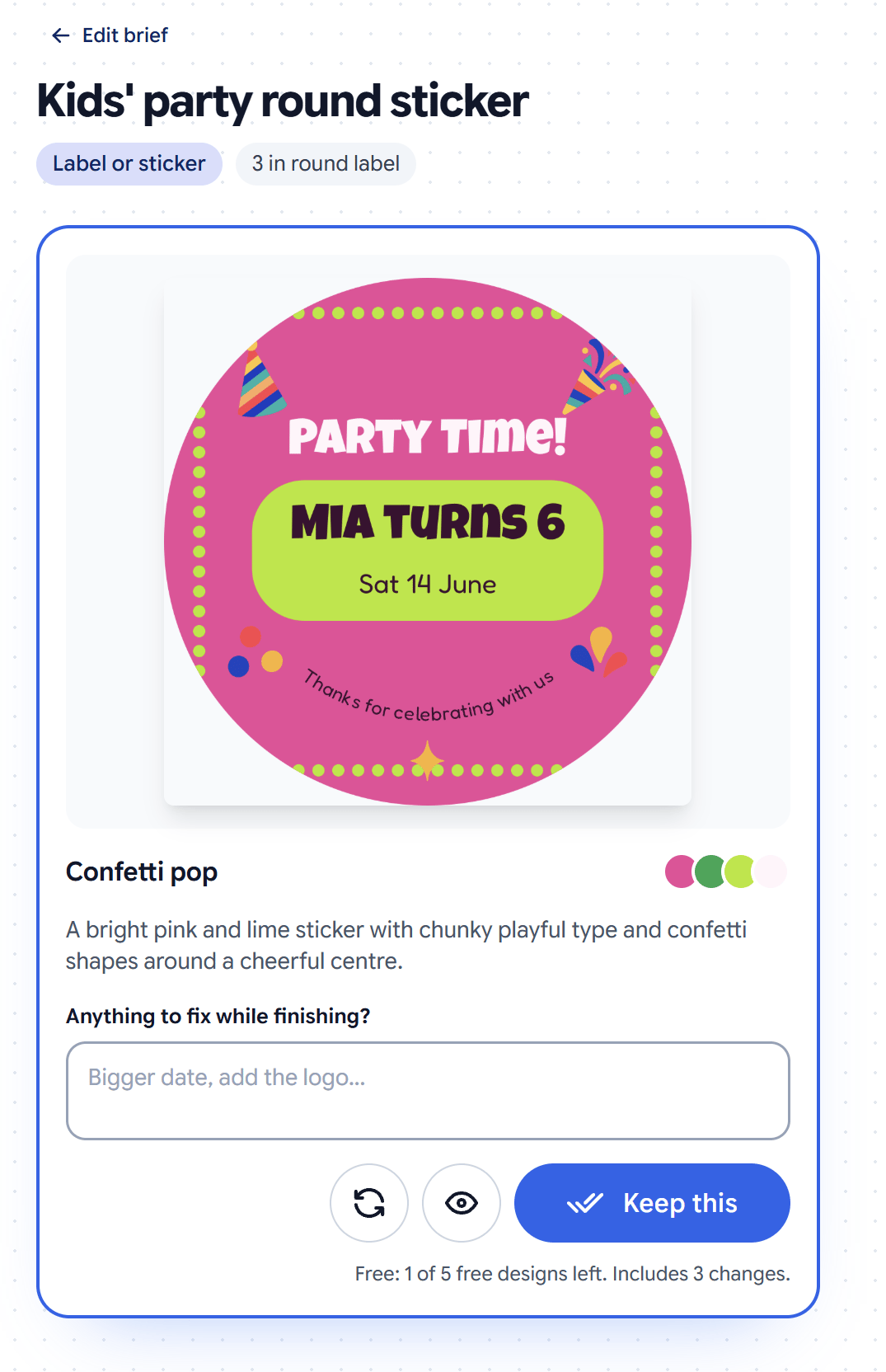
- View it larger.
- Try again. With the note box empty you get a fresh take on the same direction. With a note (“bigger date, add the logo”) it redraws this draft with your change and keeps the rest.
- Keep this. See the next step.
Good to know
If you asked for something Template Studio cannot do as asked, it tells you, in a Good to know note at the top of the panel or on the draft. For example: “Söhne is not available, so the Modern sans pairing (Outfit) is used, the closest match.” or “Foil is not available as a print finish, so the logo is printed in gold ink.”3. Keep the ones you like
Click Keep this. Anything in the note box is applied while it is finished. The finishing pass takes one to two minutes: it sets up every customer field and lock, tidies spacing and alignment, and saves the design into the folder you opened the panel from. Under the button you can see what keeping costs: free while your store has free designs left, then $0.25. See Pricing.4. After keeping
A kept design is an ordinary Print.App design. From its card you can:- Open in editor to adjust anything yourself.
- View it, or Download PDF to check the print file.
- Request a change. Describe it (“make the date bigger and the title gold”) and click Apply change. The saved design is updated in place in about a minute. Each kept design includes three changes; after that, edit it yourself in the editor.