

About Webhooks
The Webhooks enables you to easily integrate and connect the Print.App platform to your outside platforms. For instance, you may want to send the PDF file of a project directly to your printer, or save all your user’s uploaded pictures in your DropBox or Google Drive. A Webhook makes this possible by invoking your specified external URL whenever an even happens on the Print.App platform along with the details of such an event for further actions. At the moment, we can notify you when:- A new project is created, the first time a customer’s design is saved. That can be an autosave, before the customer has finished.
- A file is uploaded by your customer.
Setting up a Webhook
To get started, navigate to the settings page in your Print.App admin and click the Webhooks tab. We need a service URL to send that notification to, for that service to get the file and save in a Google Drive. For this, we can use Zapier, a service that connects different apps and services together. We will create a Zap that listens to the Webhook notification and saves the file in your Google Drive.1
Start
Register or login to Zapier and click the Make a Zap button on the top left hand corner.
A Zap is simply a workflow link you create between apps on Zapier.
You can read more here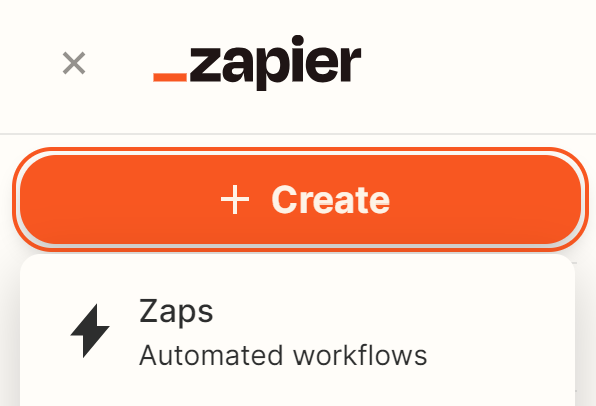
2
Add a Trigger
That should take you to the Zap creation dashboard.
Click the Trigger button
3
Select a Trigger
A window should popup, type in Webhook
And select the Webhooks by Zapier option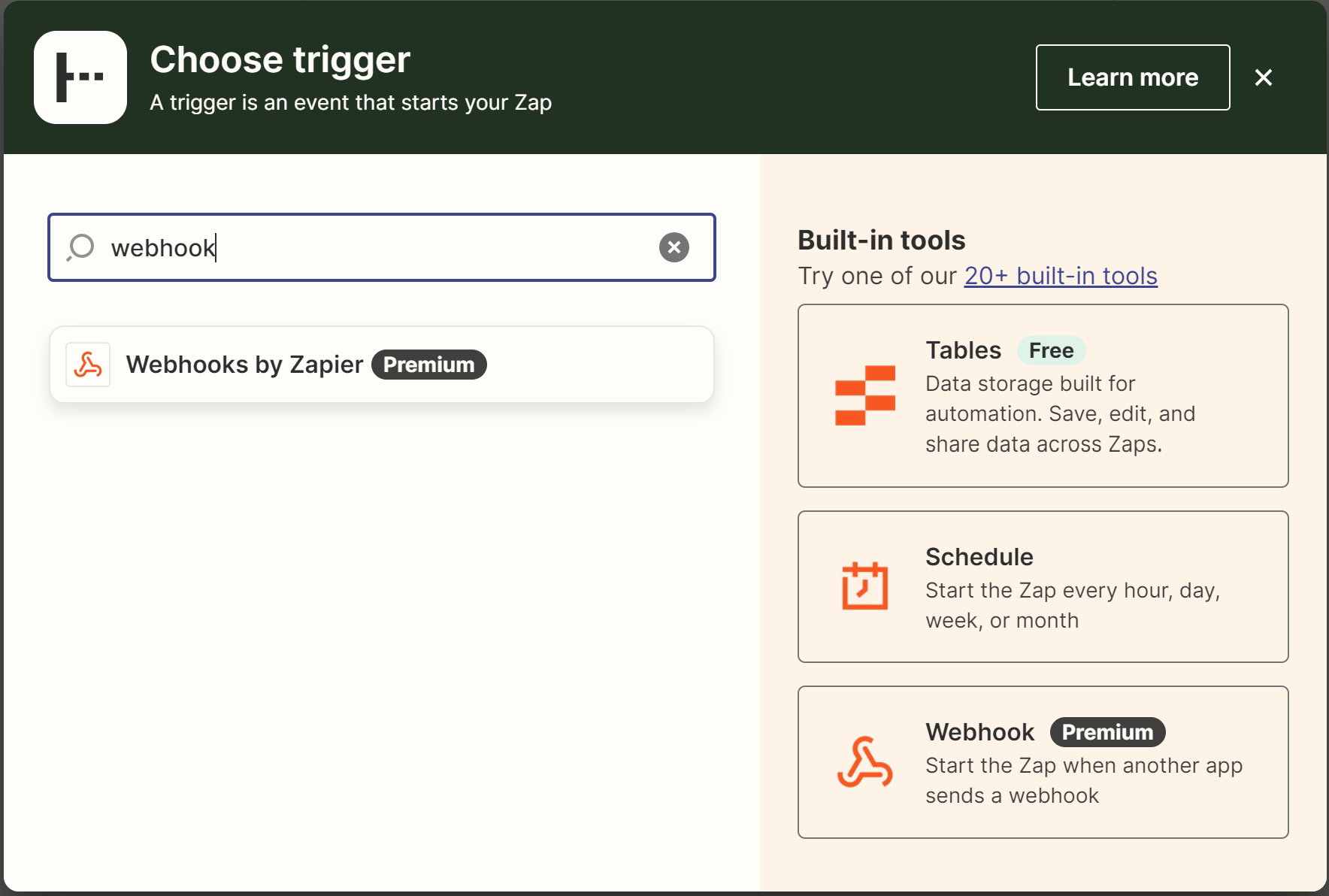
4
Trigger Hook
On the right panel, click the Event and select Catch Hook option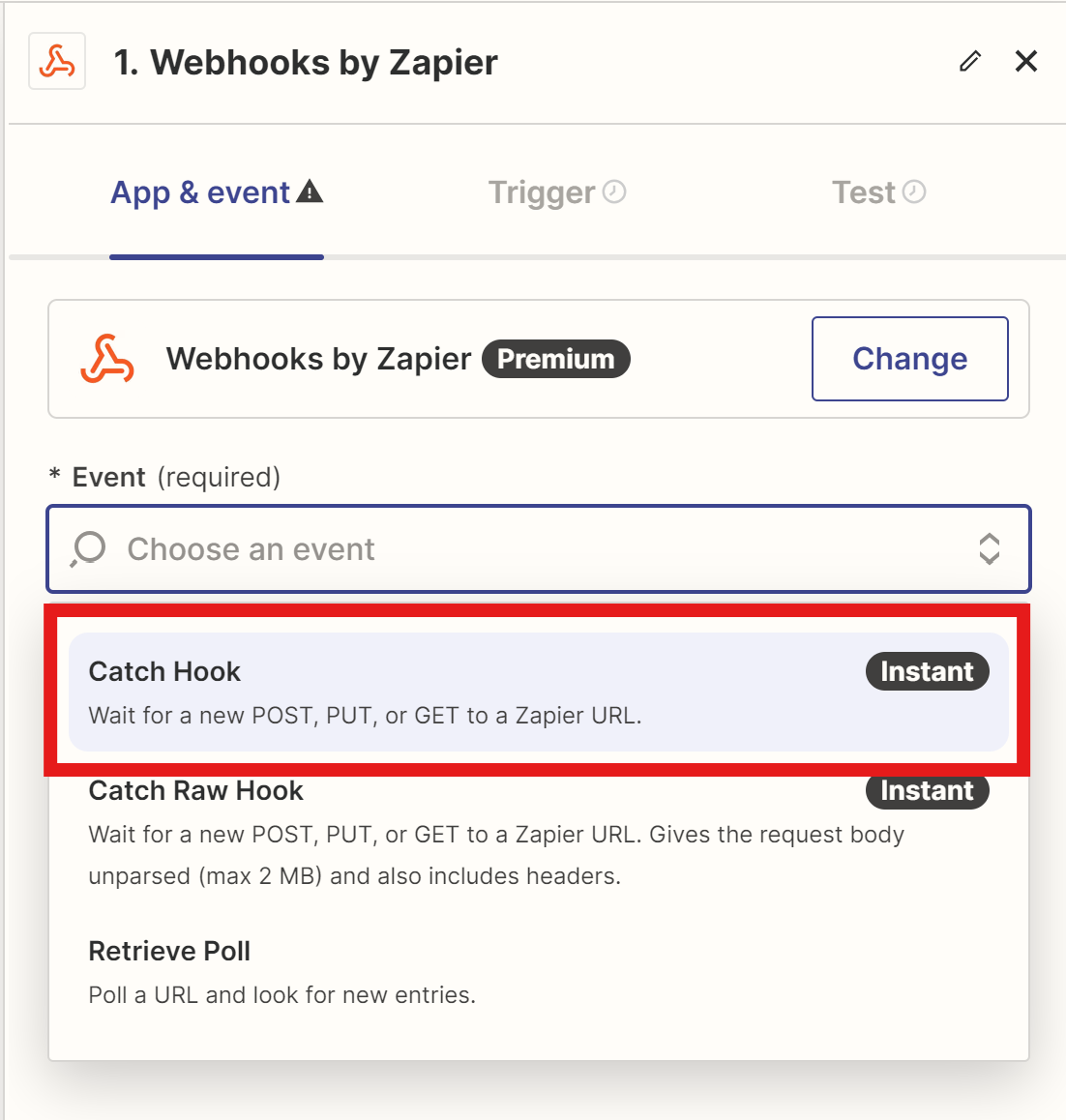
5
Obtain Trigger URL
Click next twice to arrive on the Test tab.
This should give you a URL to send the file to. Copy this URL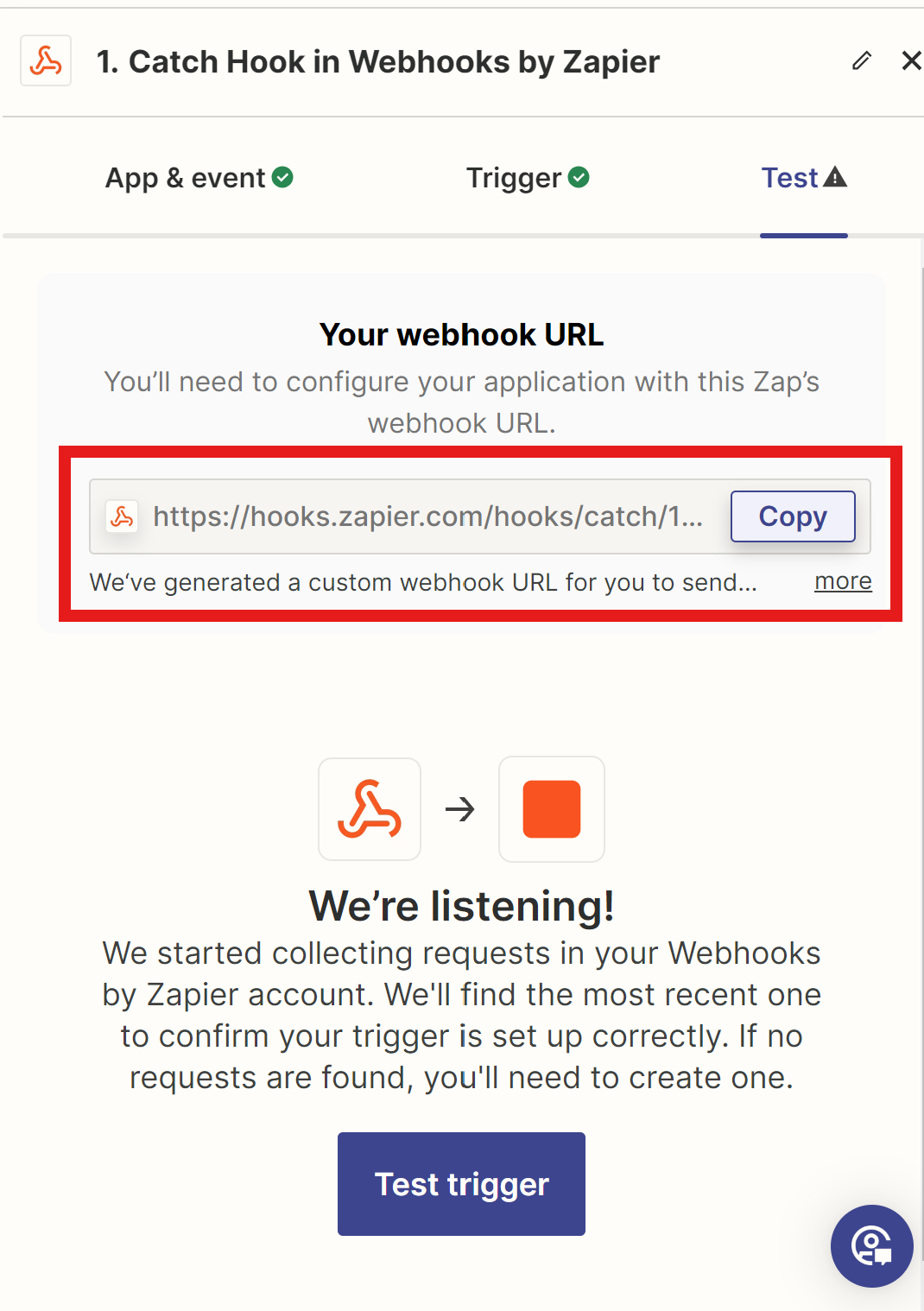
6
Add URL to Print.App settings
Open a new Tab and navigate to Print.App Settings
Click the Webhooks Tab and paste the URL copied from the prior step and save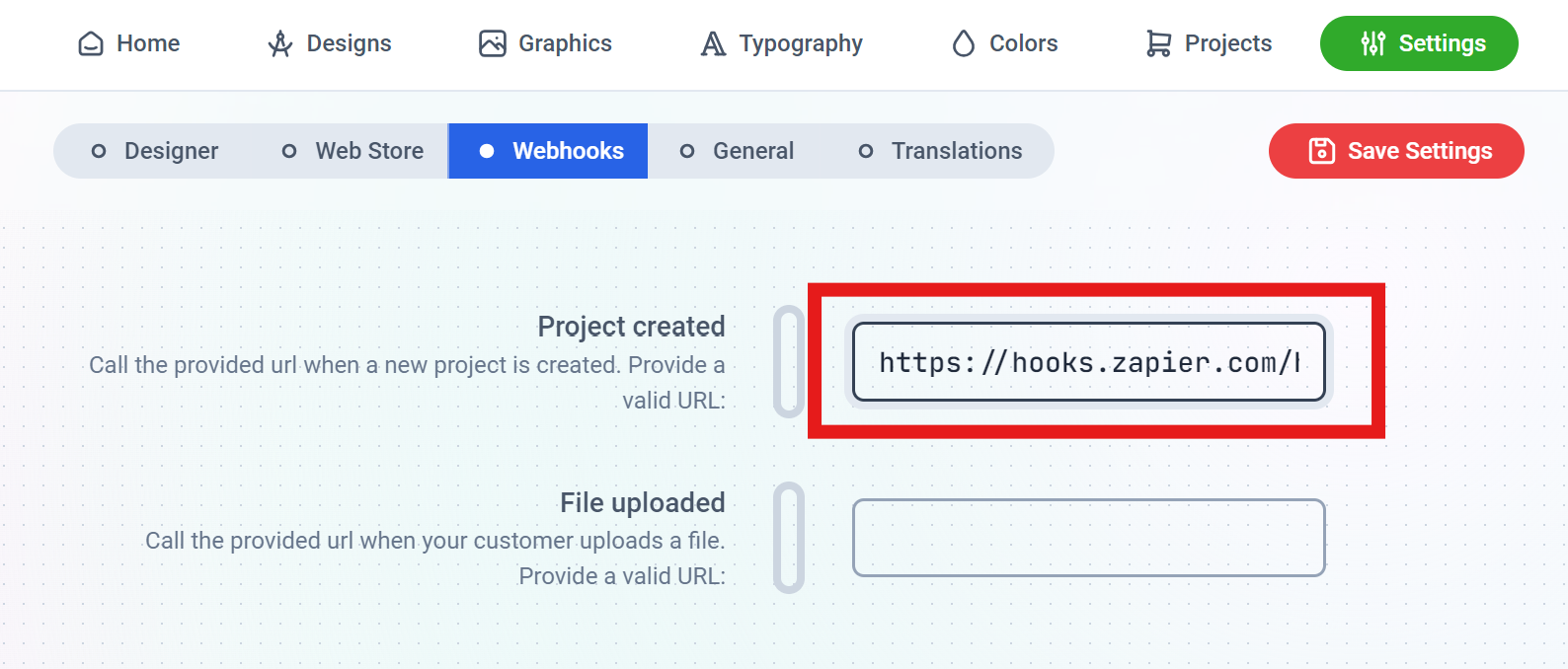
7
Test Trigger
On the Zapier page, click on the Test trigger button. Then quickly create a new customization / project on your store and save. Check the Zapier page, you should see a record from Print.App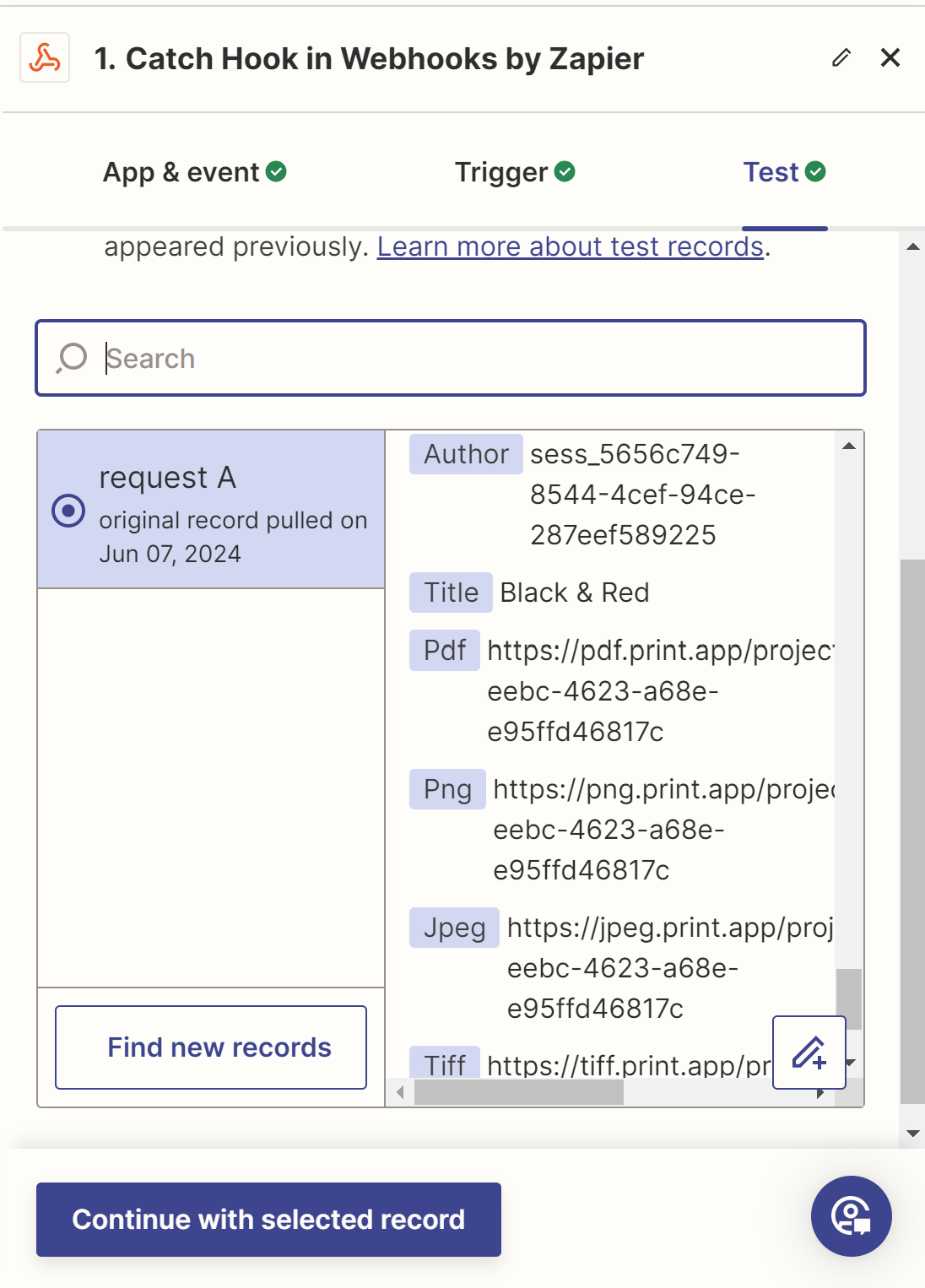
8
Action
Click the Continue with record to choose an Action.
An Action is what happens after the Trigger event and for this, we will select Google Drive. You can opt for any other service you want to save the file to or even send as an email.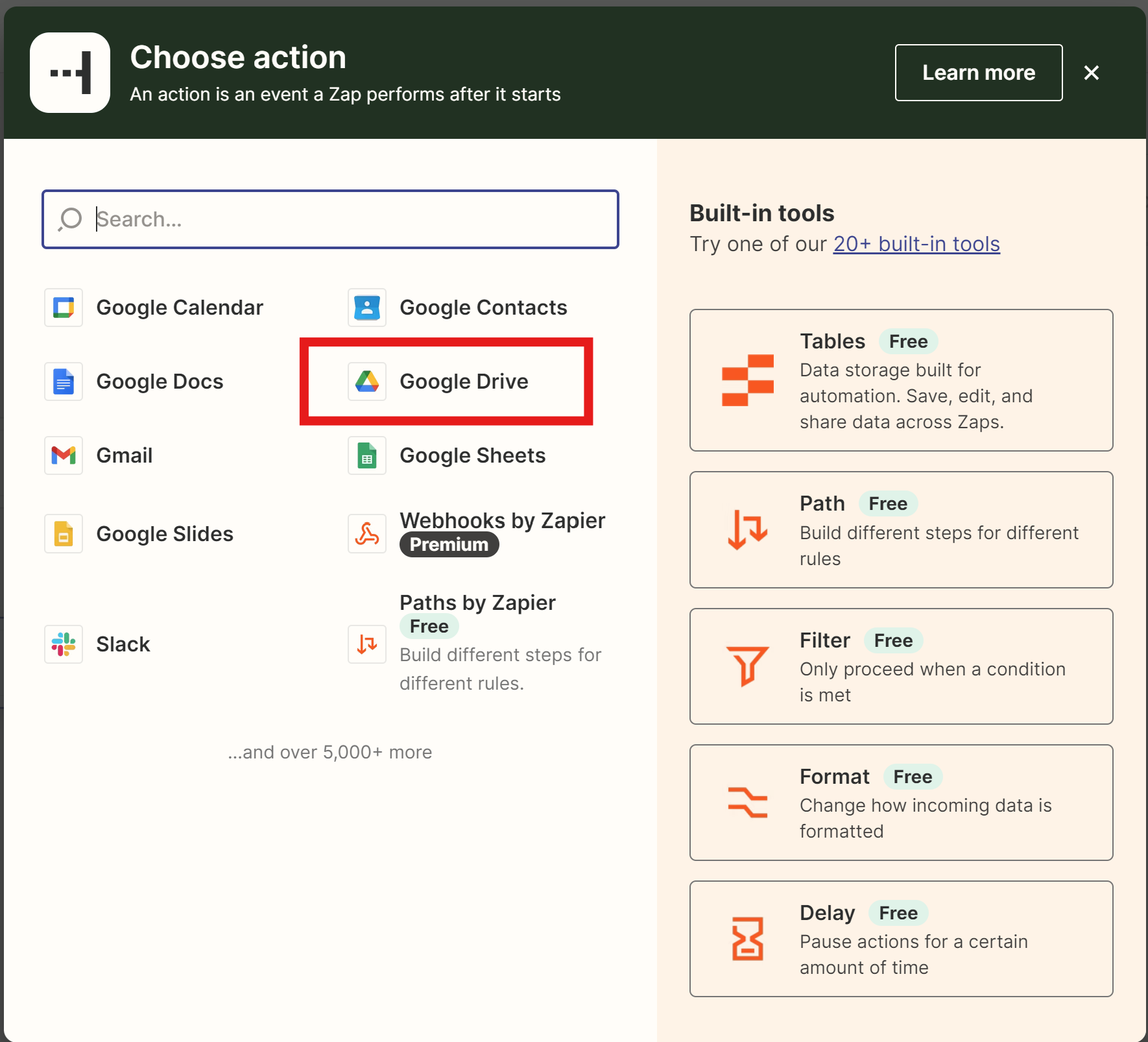
An Action is what happens after the Trigger event and for this, we will select Google Drive. You can opt for any other service you want to save the file to or even send as an email.
9
Google Drive Event
Select Upload File from the event list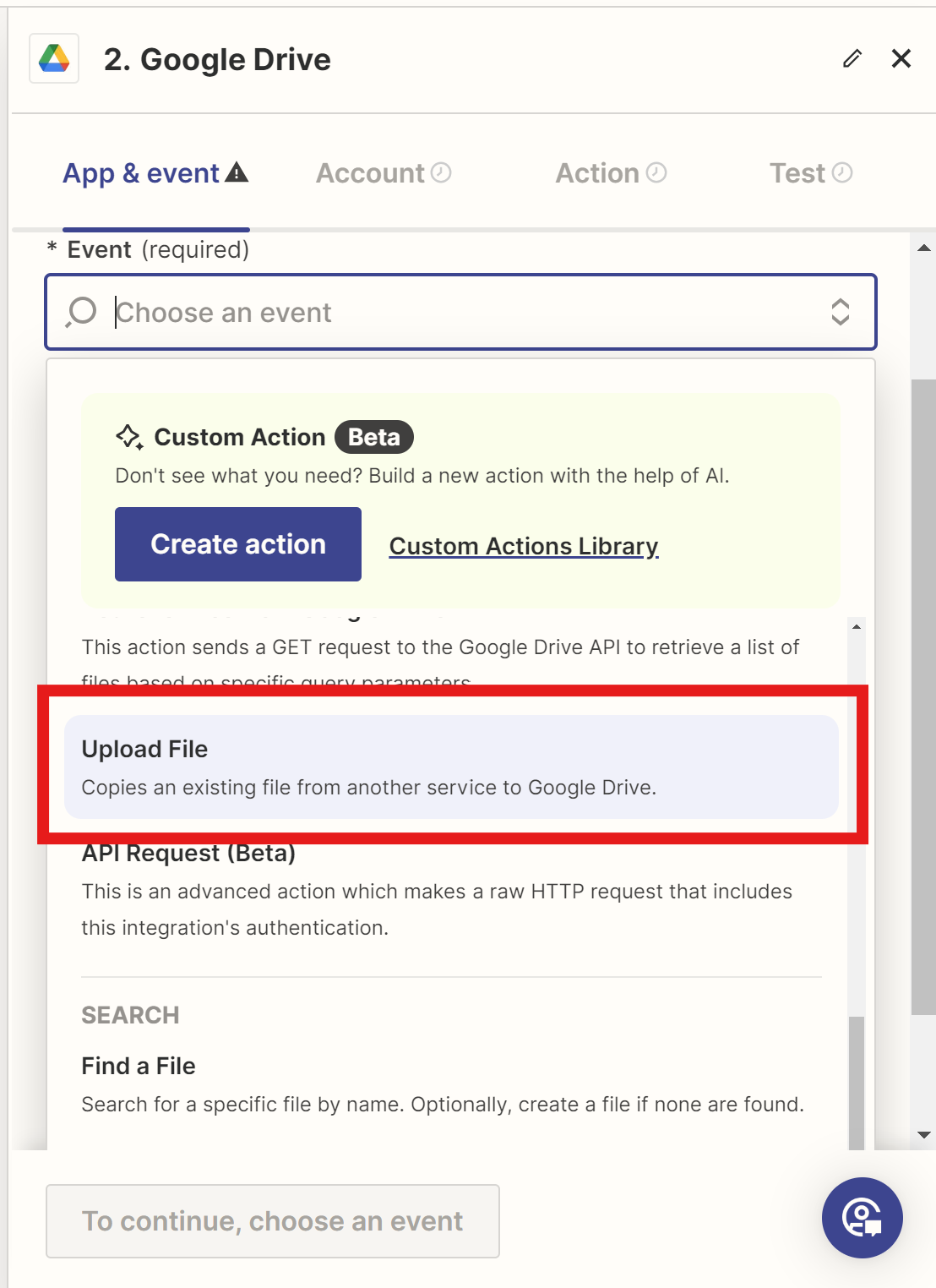
10
Select File to Upload
Give Zapier permission to access your Google Drive account and click Next.
Under action, scroll to the File section to pick which file you want to upload from the Print.App notification.
Select the PDF file from the Print.App notification.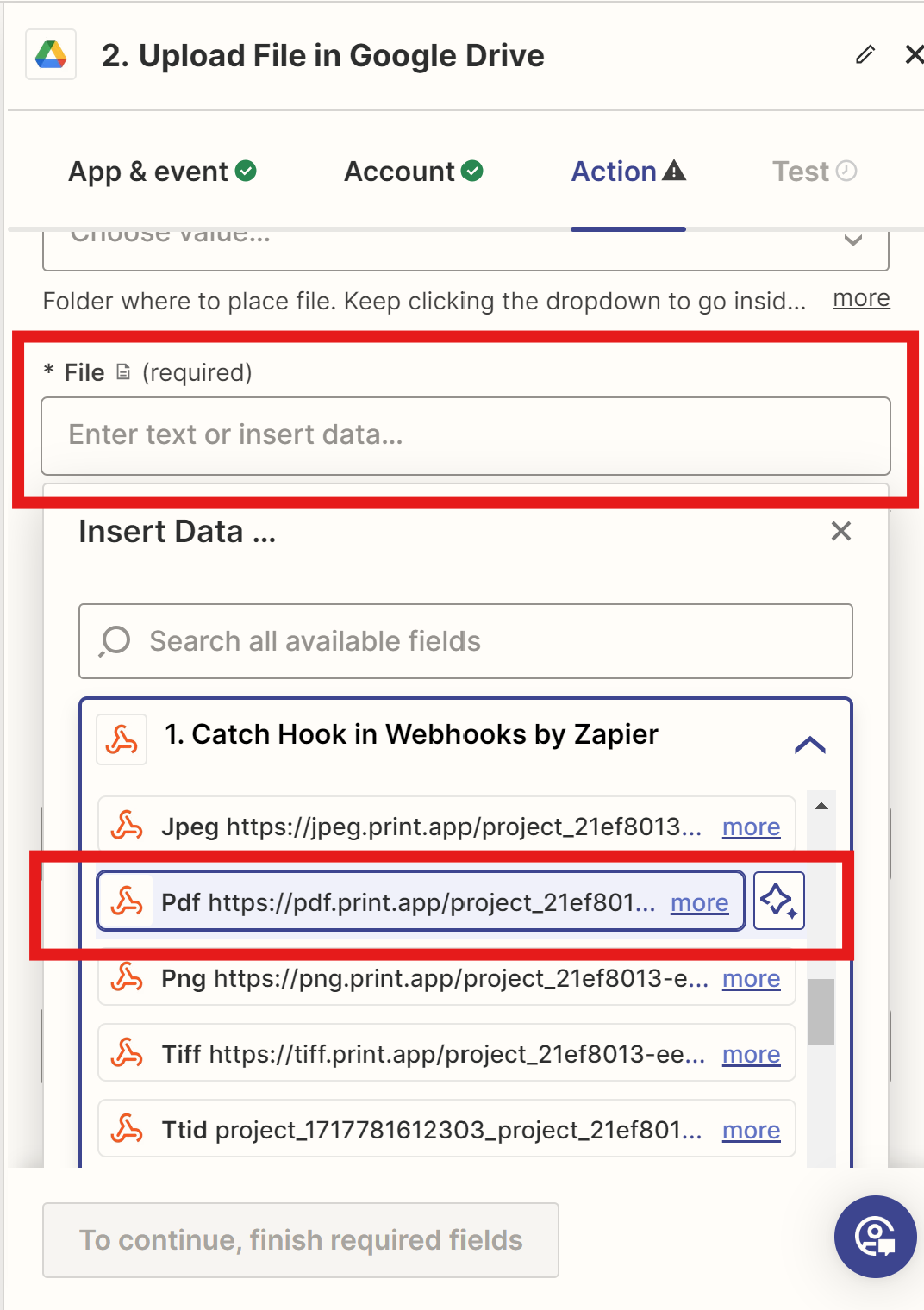
11
File Saved
Click the Test Step and Zapier should send the newly created PDF file to your Google Drive. You can check your Google Drive to confirm.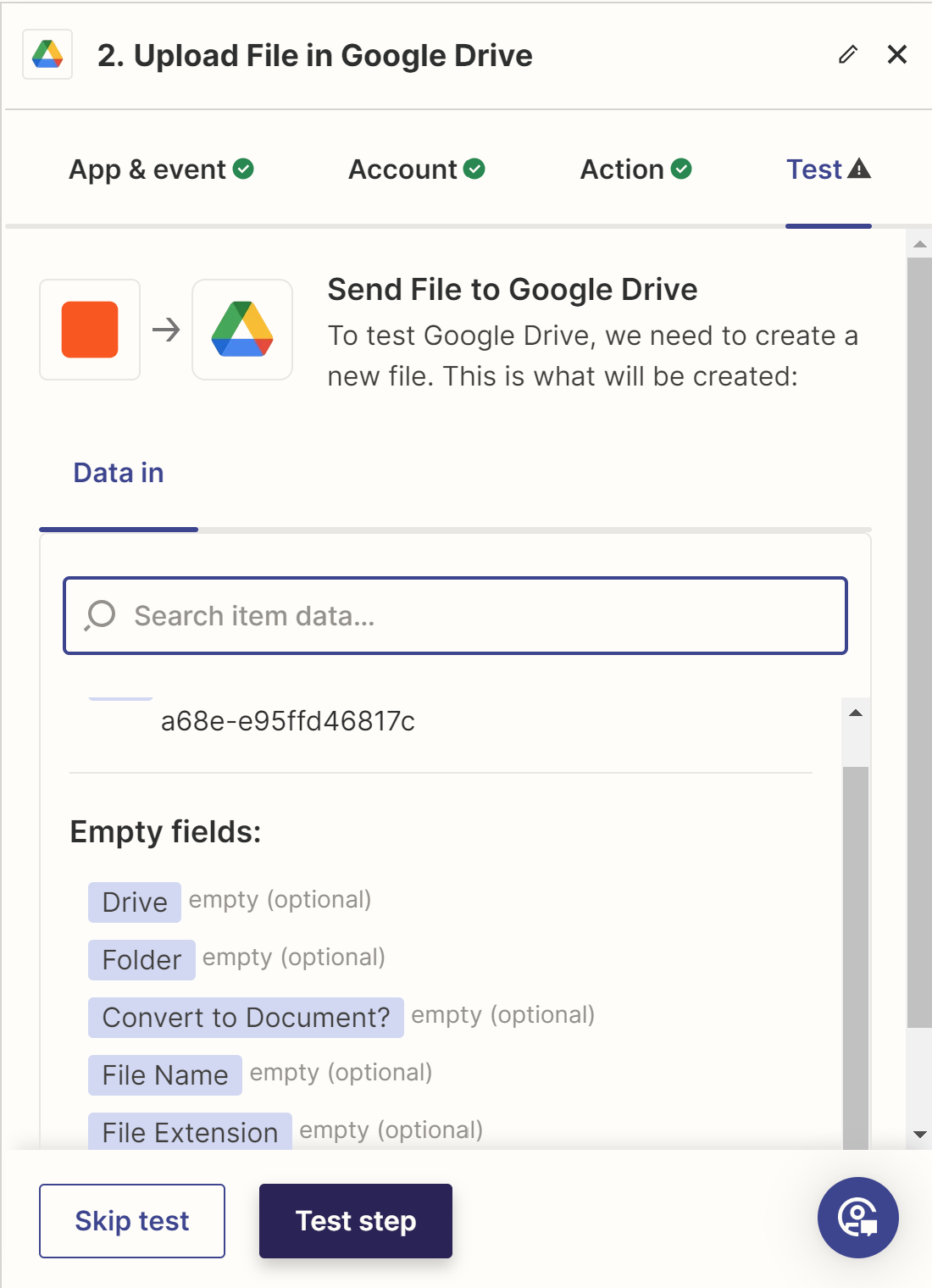
12
Save and Publish
Publish your Zap to save it.
Payloads
Each webhook is an HTTPPOST with a JSON body. It carries these headers:
New project
author is the userId your page passed to the editor, if any. product is the product object your page passed, or null. The pdf, png, jpeg and tiff links render the file from the project’s current state when you request them.
File uploaded
url is a download link that expires after one hour.
Delivery
- You can enter several URLs for an event, separated by commas. Each one receives every event.
- Each event is sent once. Failed deliveries are not retried, so make your endpoint answer quickly with a
2xx. In rare cases an event can arrive twice, so ignore aPrintApp-Event-Idyou have already handled. - With signing on, your server can reject anything that isn’t from Print.App. Without it, confirm a project with the REST API before you act on it: a
200there confirms the project is yours.
Verify a signature
Signing is off until you turn it on. Once it’s on, every webhook carries aPrintApp-Signature header that proves it came from Print.App and was sent recently.
Turn it on: in the Print.App admin, open Domains, expand your current domain, click Manage next to Secret keys, then Create signing secret under Webhook signing. Copy the secret (whsec_…) to your server. You can reveal it again there later.
The header looks like this:
t is when the webhook was sent, in Unix seconds. v1 is the hex HMAC-SHA256 of t, a full stop and the raw request body, keyed with your secret. To verify:
- Read the raw request body, before any JSON parsing. Re-serialized JSON won’t match.
- Compute the HMAC of
<t>.<raw body>and compare it with eachv1, in constant time. - Reject the request if no
v1matches, or iftis more than 5 minutes from your clock. The time check stops an old request being replayed.
v1 values. Update your server within that day; the code above accepts either. Stop signing deletes the secret and sends webhooks unsigned again.